Posted on August 27, 2020 at 13:00 PM
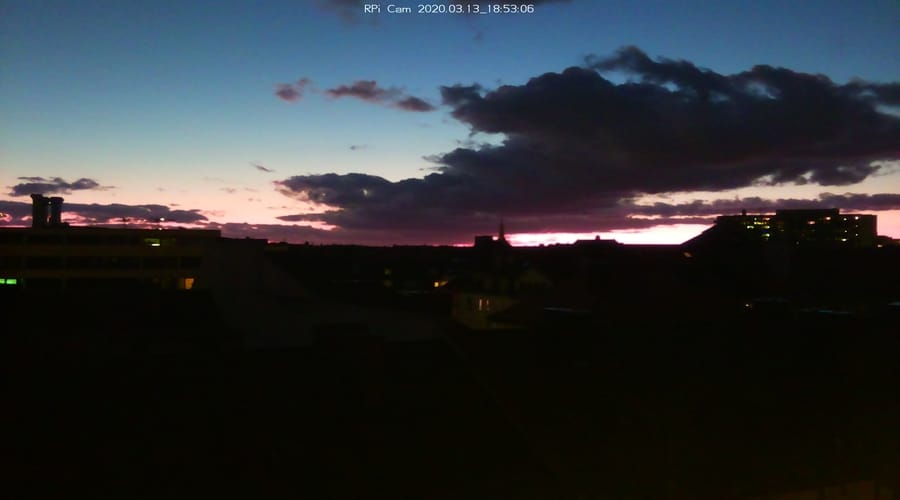
The Motivation.
Since I always loved the view from our balcony, I started to think about how I could catch this awesome view more automatically then constantly running on the balcony whenever the Clouds, Sunset or Sky were looking beautiful.
So I started my research and quickly found many sites covering this topic. Many of the actual Projects out there were doing there timelapse pictures with raspistill -t 30000 -tl 2000 -o image%04d.jpg and an assigned Cron Job.
But after a bit more research I found this cool project which absolutely fitted my needs. So let's begin!
What do we need?
- Raspberry Pi (I used Model 3 A+)
- Raspberry Pi Camera Module (I used NoIR Camera board v2)
- A Camera Module Case like this
- And of course your favourite Drink ;)
First we start to install the Raspberrypi with the latest Raspian Image.
Once done with the installation and updating the system, install Git and clone following https://github.com/silvanmelchior/RPi_Cam_Web_Interface.
In the previously checked out Project there is a ./install.sh (check your execution rights) located that we can use for the further Installation.
After executing, there is an installation wizzard openning asking you to configure the Timelapse System, for example what webserver you want to use.
The installation is pretty straight forward, so no surprises are awaiting you! Configure your Timelapse System suiting your needs. Finish!
Yeah! The Webserver is up and running!
Open your browser and type http://myraspberryIP-Adress/html/ (since not configured in other way). You should see this webinterface:
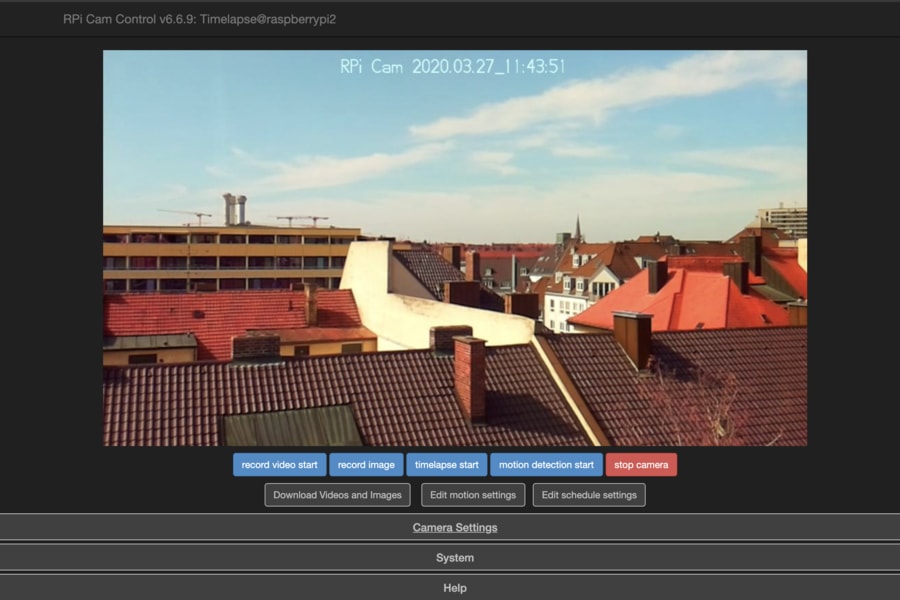
Via this webinterface you can control and configure your camera. Configure according your needs and you are ready to go!
In default mode your camera stores the videos, images and time lapses to the path configured in the /etc/raspimjpegconfig file.
Since we're running the application on a raspberrypi that has not the amount of storage needed to run in high quality timelapse over multiple
days I changed the default path to an NFS Mount pointing to my Synology drive.
Now it's time to take some pictures!
How do I transform my pictures into a video?
For this purpose I use FFMPEG. There are two essential commands that I use to convert my pictures into a video.
number one: ffmpeg -f image2 -pattern_type glob -framerate 60 -i 'im_*.jpg' -s 3280x2464 foo.mp4
to create the video
and
number two: ffmpeg -i ~/Desktop/timelapse_date.mp4 -r 64 -filter:v "setpts=0.025*PTS" ~/Desktop/timelapse_date_speed.mp4
to speed up my previously created video because the frame rate is a bit to slow.
And that's the final Product!
Hope you liked it and Thanks for reading!
Sources: